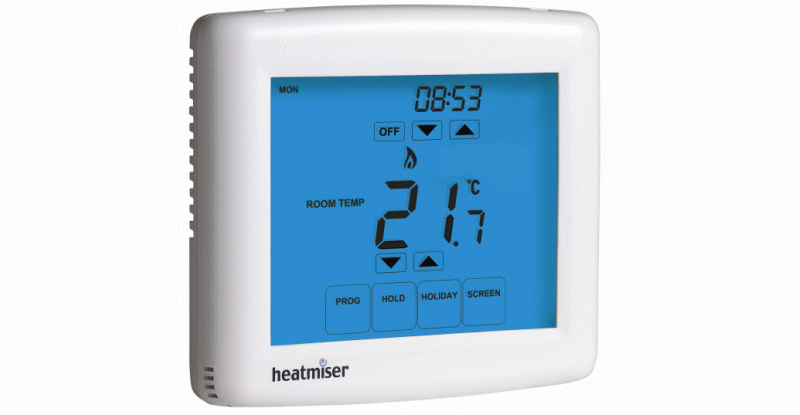
I recently decided to replace my central heating programmer with a programmable thermostat, and decided to go for the geeky option: a wi-fi connected model! So I ordered a PRT-TS Wi-Fi from Heatmiser, which can be controlled both via a Web browser and an iPhone app.
Overall, I’m happy with the product but I found it a little tricky to set up. The instructions don’t go into a huge amount of detail, a problem which is compounded by the fact that the Heatmiser support site was devoid of any information on this particular model at the time of writing, so I have discussed my difficulties below and explained how I resolved them.
Installation
I won’t go into too much detail on the physical installation, but suffice to say, most people should get the unit fitted by a qualified electrician. There’s only a page and a half of the small (A7 size) manual devoted to it, plus three wiring diagrams, and any mistakes could damage the thermostat and/or the boiler. The thermostat is designed to be flush mounted into a standard 35mm deep single back box. It can be surface mounted but it won’t look as good, particular as the thermostat is a few centimetres larger than the back box at each edge. I chose the latter option to save money, but will have it flush mounted at a later date. I will be interested to see what effect flush-mounting has on the Wi-Fi signal strength, if any.
Appearance & usability
The thermostat is essentially a PRT-TS with an added Wi-Fi card, and it looks exactly the same from the outside. It’s reasonably modern-looking (as far as thermostats go!) with a touchscreen illuminated by a blue backlight. It displays the room temperature in the middle of the screen, which can be adjusting using the up/down icons below it. A slight niggle is that it can be difficult to see what you are doing – the backlight doesn’t come on until you touch an icon, by which time it is too late. I would personally prefer the backlight to come on when touching any part of the screen (not just an icon) and the unit to only respond to icon presses when the backlight is on.
A nice feature is the “Screen” icon which locks the screen for 15 seconds, allowing time to clean it without accidentally activating any functions.
You can also view and set heating programmes, set the clock, enable temperature hold and holiday modes from the touch screen. I found setting the time slightly strange, as the down button changes the hour down and the up button changes the minute up – changing the date works in a similar way with the month and day – but this is something that is rarely necessary to change and can be done from the Web interface or iPhone app anyway.
Wi-Fi setup
Setting up the Wi-Fi connectivity nominally requires a Windows PC and the configuration utility supplied on CD. However, when plugged in via USB, the device presents itself as a USB mass storage device (albeit a very small one: 6.5KB) containing a single file – CONFIG.TXT – which contains the network configuration information in plain text, which could easily be edited by hand by users of other platforms such as Mac or Linux. The file is fairly self-explanatory – the only thing worth pointing out is that the KEYMODE parameter (wireless encryption type) must be either WPA, WEP or OPEN. There’s a slight security issue in that if someone were to steal your thermostat, they’d have access to your wireless key, thermostat password and PIN, but this is a fairly unlikely scenario!
I had trouble getting the unit to connect to my Wi-Fi network until I switched my router (Linksys WRT54GS with Tomato firmware) from WPA only to WPA+WPA2 encryption. I’m not sure whether this means that the PRT-TS needs WPA2 encryption to operate (despite the configuration utility only showing WPA), or whether there is an issue with my particular router, but if you’re having trouble, it’s worth enabling WPA2 on your router. Before I managed to get WPA+WPA2 working, I tried using WEP encryption as a test but the configuration utility wouldn’t let me save the changes. I didn’t play with the OPEN option, so I’m not sure whether this refers to unencrypted Wi-Fi (and therefore will ignore any username/password) or WEP Open System encryption.
The device requires a static IP address, and port 8068 must be forwarded via the router if remote connection via the iPhone app is required.
It’s worth noting that the front part of the thermostat detaches from the rear, so it can easily be removed once installed, and the front part will power up when attached via USB which means you can set up and test the Wi-Fi connectivity before installing the unit on the wall. This isn’t mentioned in the manual, and neither is the fact that a Wi-Fi icon (similar to the one used on the iPhone) appears on the display when connected successfully.
Browser interface
The browser interface is full-featured if a little basic-looking – it’s reminiscent of a router interface from ten years ago. The so-called “Live View” panel on the right shows the actual temperature (to one decimal place), set temperature and heat status, and a refresh button as it doesn’t seem to auto-refresh. The main interface allows you to view and adjust heating programmes, temporarily override the temperature, lock the keypad remotely, set the clock and change network settings. There doesn’t seem to be a way to change the port on which the Web interface is accessible, which would be a nice feature to have.
It doesn’t contain any form of logging functionality, so it’s not possible to view temperature changes over time. This would be nice to see in a future firmware update, but I’n not holding my breath.
iPhone app
The iPhone app, a free download from the App Store, is similarly utilitarian. It allows you to see the current temperature (rounded to the nearest degree, unlike the browser interface), set temperature (which can be adjusted) and heat status. You can also view and adjust heating programmes via the app.
One quirk of the app is that you have to select whether you want to connect locally (i.e. when you are on your home Wi-Fi network) or remotely (via the Internet). It would be nice if the app could determine whether you are home or away and select the corresponding connection method dynamically.
The interface is fairly bland but it does the job. It’s a shame that the graphics aren’t retina ready, so they look jaggy on the iPhone 4 (which has been out for more than a year, so you would have expected Heatmiser to have updated their app!). It would also be nice if a future version of the app came with iPad support – the current version works fine on the iPad but doesn’t take advantage of the bigger screen.
I was left scratching my head for a while, as I was originally able to connect via my Web browser but not via the iPhone app. This resolved itself once I moved my router closer to the thermostat, so it seems that the protocol used by the iPhone app is less forgiving of low signal strength (and potential packet loss) than standard HTTP over TCP/IP. Again this is something that should perhaps be mentioned in the manual.
Conclusion
It’s a version 1 product, so is sometimes a little rough around the edges, but the hardware is solid and the product could easily be improved with updates to the Web interface and iPhone app. The manual is fairly basic, which I can understand is necessary to minimise the size and weight of the box, but why not include a more detailed version on the included CD and/or on the Web?
One final point is that I was slightly perturbed to find that the thermostat, which I paid £150 plus delivery for via Heatmiser’s own shop, is available for as little as £126 delivered from some resellers, so it pays to shop around!
Update
Heatmiser tweeted me and pointed me towards their document download area which contains some useful information. They also say they’re working on a new version of the iPhone app, iPad and Android support, multi-zone and logging functionality, and suggest that users email support@heatmiser.co.uk with any further suggestions.
Also, the £126.20 price I found is actually ex-VAT (thanks Luke!) so it is actually best to buy from Heatmiser directly.


Hi guy, can you help me for the request above?
Hi Brian,
Thanks for your reply.
I accidentally formatted the memory of the thermostat.
now I can not access the memory.
Flash memory on thermostat has boot sector corrupt.
To solve problem I need two files:
1. the “CONFIG” file contents in the memory of the thermostat;
2. the file “HEXADECIMAL” memory of the thermostat that can be produced with the following steps:
– download free hexadecimal software “free-hex-editor-neo” from internet;
– install the software on your pc windows 7;
– connect thermostat with usb cable;
– open software “HexFrame”;
– click File, Open, Open Physical Disk;
– select the “heatmiser PRT-TS WIFI” device;
– click OK;
– click File, Save as;
– select Desktop;
– give a name at the file;
– click Save.
Well, on your desktop there is file that I need to run my heatmiser.
Can you send me these two files (CONFIG – HEXADECIMAL)?
can you send two files at this email:
vincenzoamat(AT)hotmail.it
Hi there, great article and thanks for taking the time to post. I have a follow up question (yes I’m non-techie). We’ve just had the system installed in our home and I’m trying to check if the hub would dramatically reduce the wireless performance of my router/Internet. Since installing wireless and LaN connections are slowed right down. Could this be interference (channels?) or just the Hub eating up the bandwidth?
Many thanks
Hi Al, thanks for your kind comments. I haven’t experienced anything like this so I’m not sure why it’s happening. Have you tried contacting Heatmiser’s support team?
Hi at all
I accidentally formatted the memory of the thermostat.
now I can not access the memory.
Flash memory on thermostat has boot sector corrupt.
To solve problem I need two files:
1. the “CONFIG” file contents in the memory of the thermostat;
2. the file “HEXADECIMAL” memory of the thermostat that can be produced with the following steps:
– download free hexadecimal software “free-hex-editor-neo” from internet;
– install the software on your pc windows 7;
– connect thermostat with usb cable;
– open software “HexFrame”;
– click File, Open, Open Physical Disk;
– select the “heatmiser PRT-TS WIFI” device;
– click OK;
– click File, Save as;
– select Desktop;
– give a name at the file;
– click Save.
Well, on your desktop there is file that I need to run my heatmiser.
Can you produce and send me these two files (CONFIG – HEXADECIMAL) at the e-mail vincenzoamat@hotmail.it
Hi,
I have the same problem as Vincenzo, could someone help me?
Hi,
my heatmiser has stopped connecting to my wifi and now I even can’t access the config file.
I guess it’s the same issue like Vincent has, so if somebody can post these to files, this would be great.
Best
Hans-Jörg
Ive just moved in and they have a Heatmiser in the bathroom. It’s not holding its charge. When a laptop is connected it works fine. But as soon as the laptop is disconnected it goes dead and all the information is erased. Any ideas?
Hi Peter,
I’ve moved house and no longer have a Heatmiser, but from memory I think there is a small battery somewhere on the circuit board. Sounds like this has failed and needs replacing. If you have no luck with this, maybe try connecting your laptop to the Heatmiser without taking it off the wall first, so it retains mains power. Obviously if you go down this route you will have to set up the device via your laptop each time you have a power cut.
Good luck!
Hi,
I am trying to get hold of a PRT-ETS WiFi to add to my system.
These are no longer made by Heatmisesr but if someone has one they would like to sell please let me know.
Thanks
Well seems there are a few of us with an old hm and that want it to keep on working.
It worked perfectly fro me since 4 years.
recently i tried a different one a smart one but want to go back to hm : i am the smart in home.
However after reattacching the device I have trouble accesing it through the app (android s7 marshmallow).
I see the hm has connection to my wifi . gets an adress etc.
If i connect through usb (win10 pc) i can read the setup but can0’t write.
However this setup would be fine for me.
However the loading animation keeps spinning and i can’t connect. ::-(
I also opened port 8068 but no luck!
any advice?